Procedure for Issuing an Export Credit Note (NCE) in ioFacturo
To issue an Electronic Export Credit Note (NCE) from ioFacturo, please follow the steps detailed below:
1. Issuing an NCE from ioFacturo
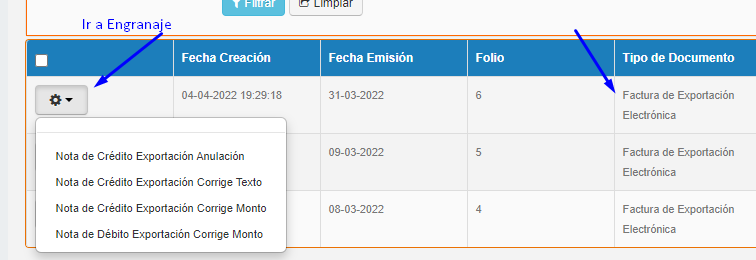
- Locate the Electronic Export Billing module (Factura de exportación electrónica).
- Click the gear icon (Settings) associated with the document.
- A menu will be displayed with the available options for issuing the Credit Note, as shown in the reference image.
2. When the Export Invoice Was Not Issued from ioFacturo
If the original invoice was generated using another billing system, it may not automatically appear in ioFacturo. In this case, you must synchronize the document with the tool.
Prerequisites
- The document must be available in the Inbox of your Gosocket portal.
Document Synchronization Module
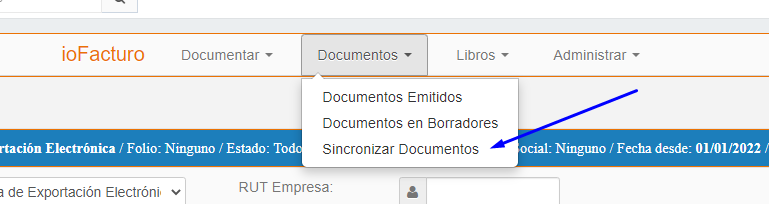
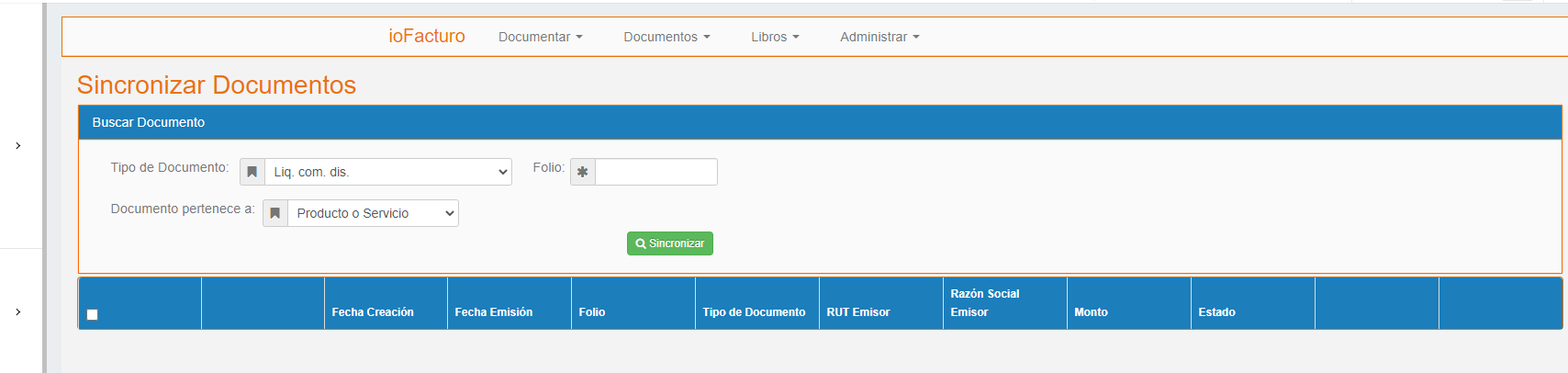
Access the module corresponding to Document - Document Synchronization (Documentos - Sincronizar Documentos), where you will find the option to manually register the invoice.
- Select and complete the required fields.
- Click the “Synchronize”(Sincronizar) button.
3. Confirmation and Next Steps
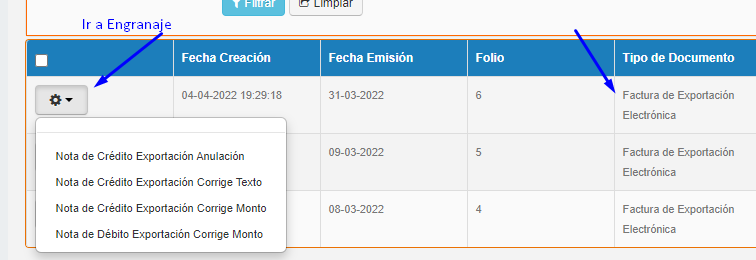
If the document is successfully synchronized, you may proceed with issuing the NCE by following the step 1: Gear Icon (Settings) → Select the appropriate Credit Note issuance option.
Was this article helpful?
That’s Great!
Thank you for your feedback
Sorry! We couldn't be helpful
Thank you for your feedback
Feedback sent
We appreciate your effort and will try to fix the article


