Procedure for Updating the Cryptographic Key (Certificate and Password)
To update the cryptographic key associated with your electronic invoicing process through ioFacturo, please follow the steps detailed below:
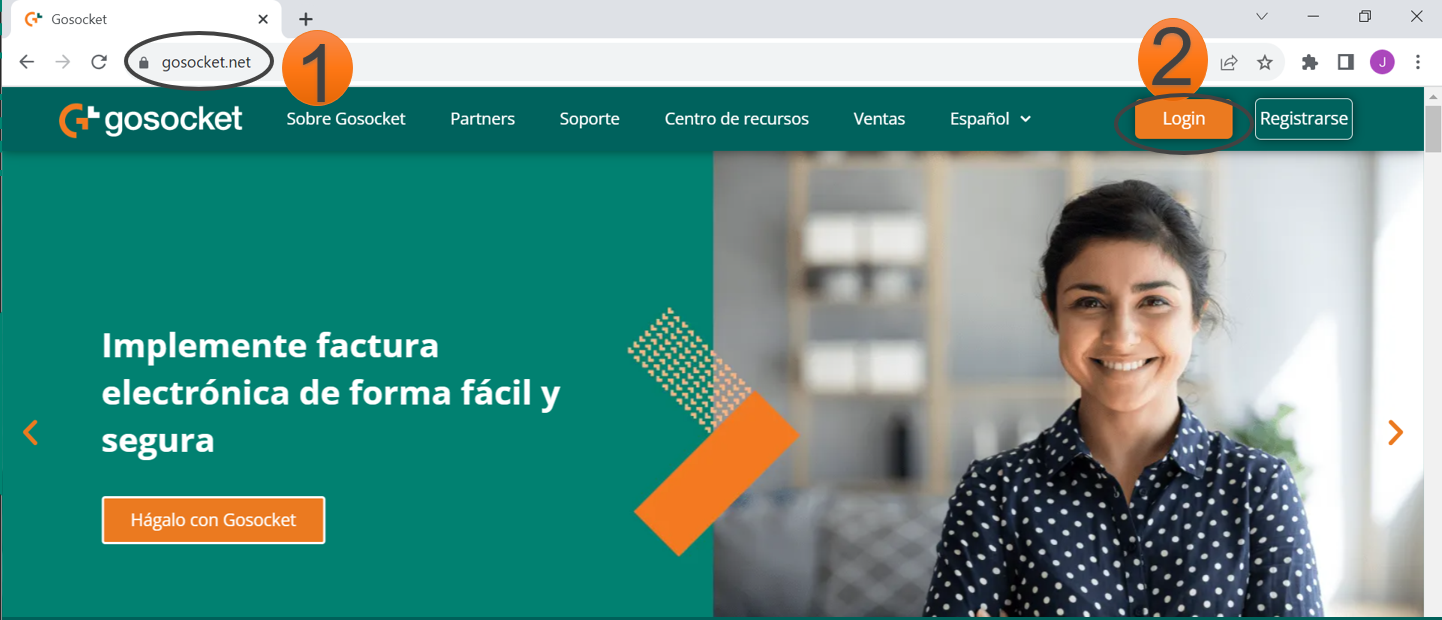
1. Access the invoicing platform using the following link:
https://www2.gosocket.net
2. Select the Login option and enter your credentials.
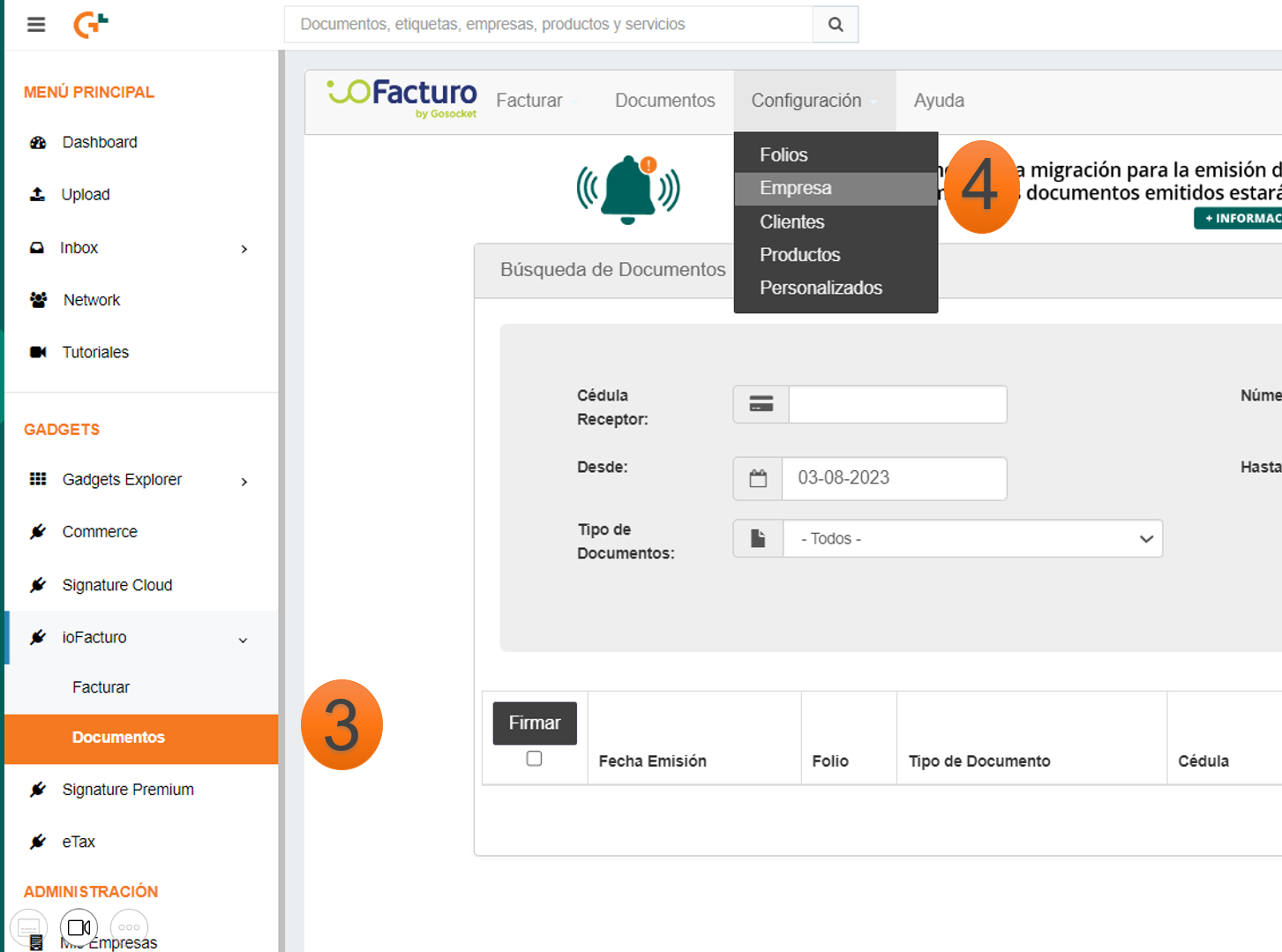
3. In the main menu, click on ioFacturo – Documents (Documentos).
4. Go to Settings → Company (Configuración - Empresa).
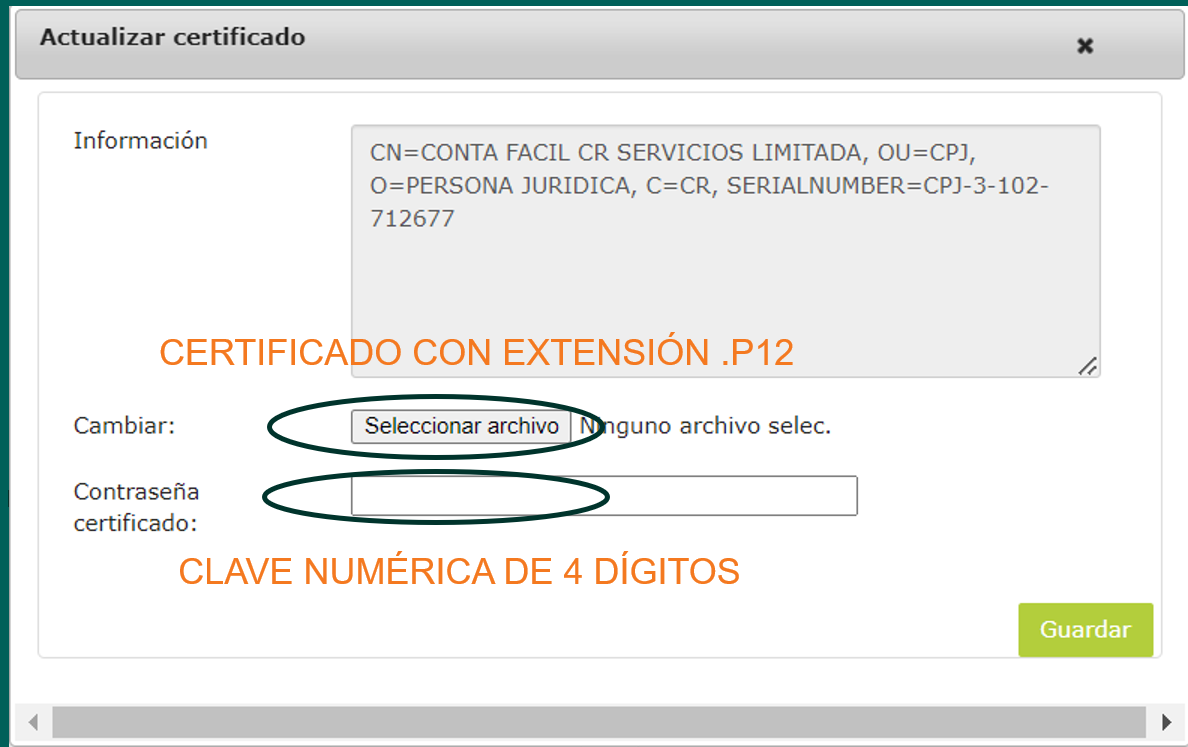
5. In the pop-up window, locate the section corresponding to the Cryptographic Key (Llave criptográfica). There, you must upload the .p12 file provided by the Ministry of Finance, along with the previously defined 4‑digit password.
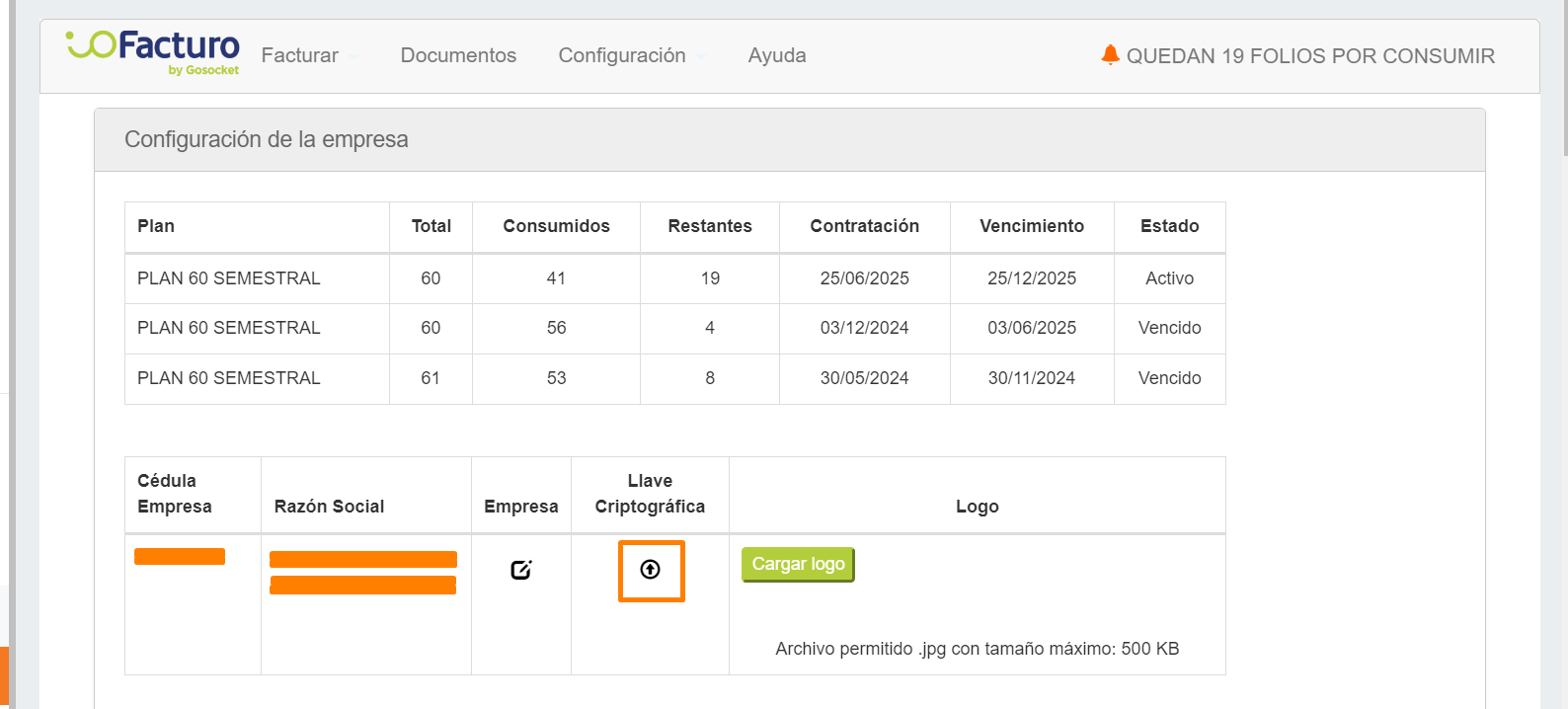
Cryptographic Key
Important: For certain actions on the Gosocket portal, it is also necessary to perform this update at a general portal level by following the steps described in the article ¿How to upload a digital certificate? API Customers?
Note: Documents that appear in a REJECTED status due to a signing error do not require the issuance of a credit note for cancellation.
Since they were rejected by the Ministry of Finance, they have no tax validity, and therefore do not generate any fiscal obligation.
Was this article helpful?
That’s Great!
Thank you for your feedback
Sorry! We couldn't be helpful
Thank you for your feedback
Feedback sent
We appreciate your effort and will try to fix the article


