DIAN performs automatic validations on all electronic documents sent by issuers in Colombia. When any validation fails, the document is marked as "Rejected" (Rechazado), which prevents its acceptance and tax use.
This guide explains how to interpret DIAN rejections, how to identify them in the portal, and how to correct them effectively.
1. ¿What is a DIAN rejection and why does it occur?
A DIAN rejection occurs when a validation rule from Technical Annex 1.9 is not met. These rules verify:
- XML structure
- Value correspondence
- Totals and calculations
- Existence of data in reference tables
- Node sequence
- Valid codes (municipalities, VAT, units, etc.)
- Mathematical validations
- Dates, CUFE, signatures, and more
If any of these points fail, DIAN responds with a rejection code and a technical error description.
2. ¿How to validate a DIAN rejection from the portal?
To view the cause of the rejection from the Gosocket portal:
- Go to Inbox → Issued.
- Locate the document with status Rejected (Rechazado).
- Click the document to open the details.
- In the DIAN status or events section, you will see:
- The rejection code (e.g., CDG01, FAU02, etc.)
- The rejection description
- DIAN timestamp
- The validated XML
This information is key to identifying and correcting the exact error.
3. ¿How to interpret a DIAN rejection?
Interpreting a DIAN rejection involves three steps:
a) Identify the rejection code
Examples:
- CDG01
- FAU02
- FEC01
- DSC01
Each code corresponds to a table in DIAN’s documentation.
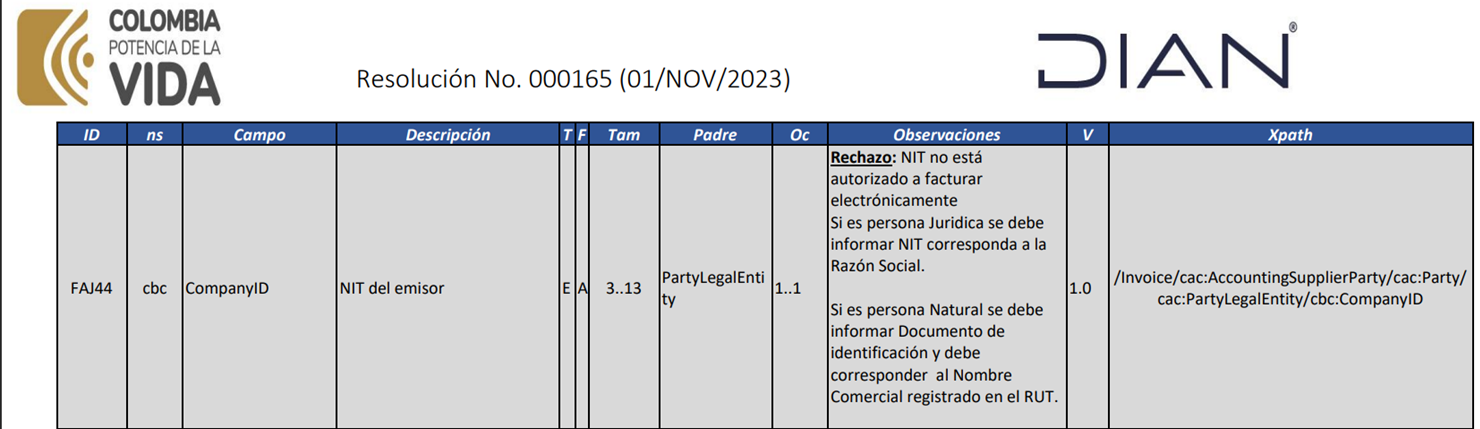
b) Review the error description
This describes the exact reason for the rejection:
- “Municipality code does not correspond to the department”
- “Gross amount does not match line totals”
- “Receiver’s tax ID (NIT) not valid”
- “Document sequence is not consecutive”
Examples:
c) Validate the XML at the indicated location
When DIAN includes an XPath, you can locate the issue directly in the XML.
Example (CDG01 rejection):
//cbc:ID = 76 //cbc:CountrySubentityCode = 76120
If the municipality does not correspond to the department, DIAN will reject it.
4. Main types of DIAN rejections and how to resolve them
Below are the two examples, expanded for general guidance.
-Rejection CDG01 – Incorrect department and municipality codes
This rejection occurs when the municipality code does not match the department code according to DIAN’s official tables.
Error example:
Node | Value Sent | Issue |
|---|---|---|
<cbc:ID> (Department) | 76 | Correct |
<cbc:CountrySubentityCode> (City) | 76120 | Incorrect for the actual municipality |
The official catalog indicates that Candelaria must be 76130.
Solution:
- Update the municipality code in your integration file.
- Validate against DIAN table 13.4.3.
-Rejection FAU02 – Error in the document gross value
This rejection occurs when the line values and the total gross amount do not match.
DIAN validation:
round(LegalMonetaryTotal/LineExtensionAmount) ≠
round(sum(InvoiceLine/LineExtensionAmount))
Real example:
The XML indicates 2 items, but the total value does not match the actual sum.
Solution:
- Review the tag:
<cbc:LineCountNumeric>2</cbc:LineCountNumeric>
- Manually sum the LineExtensionAmount values.
- Correct the gross total (LegalMonetaryTotal → LineExtensionAmount).
5. General methodology to analyze any DIAN rejection
A universal step-by-step approach:
Step 1: Identify the rejection code
- Locate the DIAN code in the Gosocket portal
- Note its description.
Step 2: Locate the XPath or affected node
Review the XML:
- Validate the node referenced by DIAN.
- Compare it to the Technical Annex rules.
Step 3: Validate business rules
Check:
- Official DIAN reference tables
- Summations
- Event sequence
- UBL 2.1 structure
- Mandatory fields by document type
Step 4: Check the Technical Annex version
Rejections often arise from:
- Changes from Annex 1.8 → 1.9
- New validation rules
- Updated tables
Step 5: Correct the XML and resend
Once corrected:
- Regenerate the XML
- Digitally sign it
- Send it again for DIAN validation
6. Recommended tools for analysis
- XML viewers (Notepad++, VS Code, Oxygen XML)
- UBL validators
- DIAN reference tables
- ERP or integrator logs
- Gosocket portal (Inbox Issued → document details)
7. Tips to avoid DIAN rejections
✔ Keep the following updated:
- Municipalities
- Taxes
- Units of measure
- Reference codes
✔ Validate totals before sending
✔ Check document numbering sequence
✔ Validate issuer and receiver NIT
✔ Ensure the digital signature is valid
✔ Verify document dates (avoid future dates)
8. Conclusion
DIAN rejections may seem technical, but they all follow a clear logic based on:
- Correct XML structure
- Valid data according to official tables
- Coherent mathematical operations
- Business rules from the Technical Annex
With this guide, you will be able to interpret and resolve most DIAN rejections efficiently and without unnecessary escalations.
Was this article helpful?
That’s Great!
Thank you for your feedback
Sorry! We couldn't be helpful
Thank you for your feedback
Feedback sent
We appreciate your effort and will try to fix the article


