If your Digital Certificate has expired and you already have a new one, you must upload it to xDoc so your documents can continue to be signed correctly.
Below you will find a step‑by‑step guide to upload the new certificate and verify that it has been configured properly.
Before you begin, make sure that:
- Your new Digital Certificate is available on the computer or server where xDoc is installed.
- You know the password for the new certificate (usually with .pfx or .p12 extension).
- You have permissions to run xDoc as Administrator.
Step 1: Open xDoc as Administrator.
Locate the xDoc icon on your computer, right‑click on it, and select “Run as administrator” (Ejecutar como administrador). This is important to ensure that configuration changes are saved correctly.
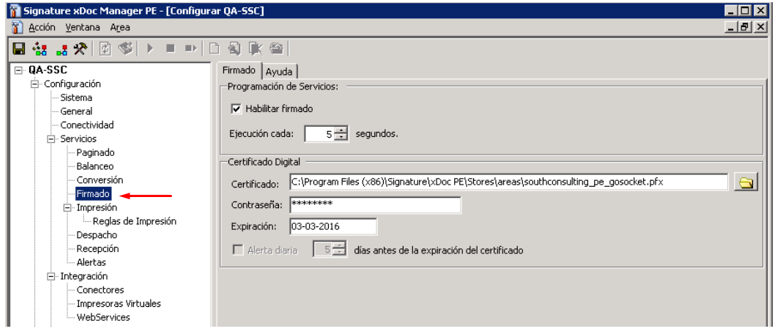
Step 2: Go to the Signed (Firmado) tab.
Once inside the system, you will find several tabs at the top. Select ➡ Signed (Firmado) (This section usually shows the current certificate and its expiration date).
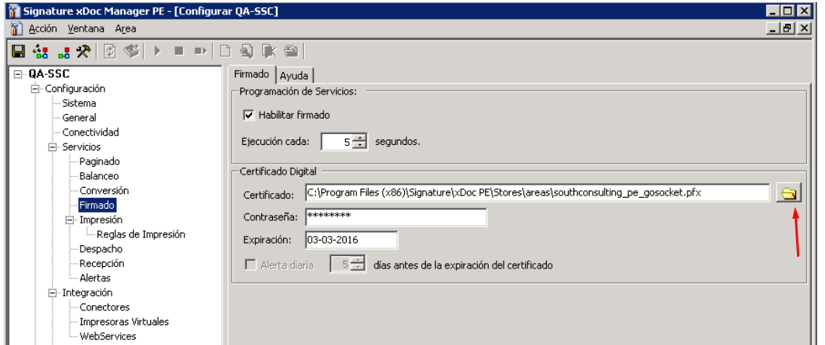
Step 3: Select the New Certificate.
Click the yellow folder icon. The file explorer will open. Navigate to the location where the new certificate is stored and select it. (The file must be in .pfx format.)
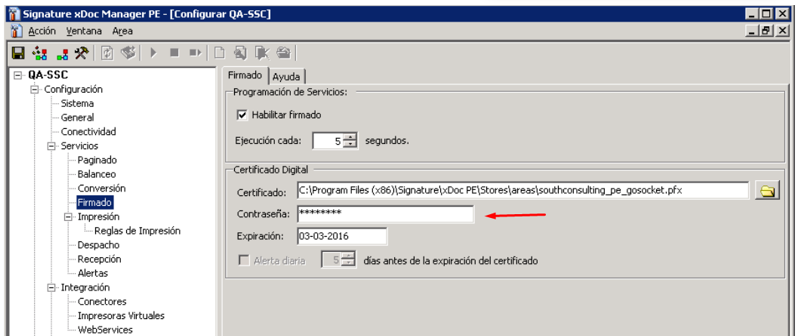
Step 4: Enter the Certificate Password (Contraseña).
When you select the file, xDoc will ask for the password associated with the certificate. Enter it exactly as it was provided to you.
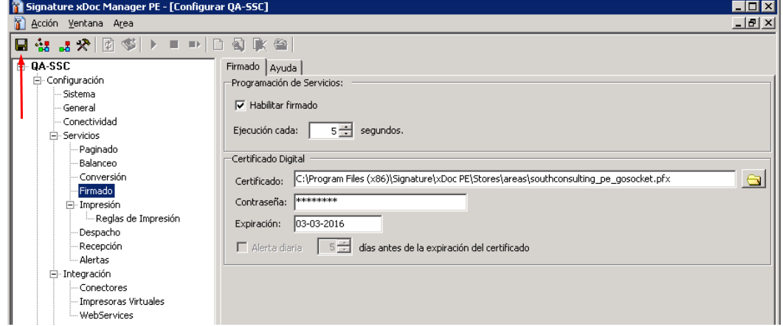
Step 5: Save the Configuration.
Click the Save (Guardar) button to register the new certificate in xDoc.
Step 6: Restart xDoc services.
This step is essential for the update to take effect. Go to the Services (Servicios) tab. Select all services (you can drag with your mouse). Click the Restart (Reinicio) button located in the upper-left corner. (This button has an icon of a black square with a triangle pointing to the right). After restarting, xDoc will load the new digital signature.
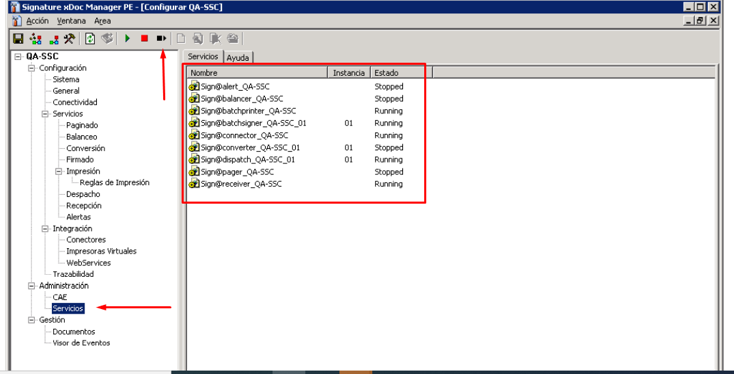
Final Verification: To make sure the certificate was loaded correctly:
- Go back to the Signed (Firmado) tab.
- Confirm that the expiration date now corresponds to the new certificate.
If the date is updated, ¡everything is correctly configured!
¿Still having issues?
If after following all the steps you are still experiencing difficulties while uploading your new certificate:
Contact us through the support channels available in our Help Center. We will be ready to assist you in validating the certificate and ensuring your documents are signed without interruption.
Was this article helpful?
That’s Great!
Thank you for your feedback
Sorry! We couldn't be helpful
Thank you for your feedback
Feedback sent
We appreciate your effort and will try to fix the article


