When you issue a document such as invoices, credit notes, or dispatch guides, your customer may require additional information for validation, such as:
- Purchase Order (PO) Number
- Store Number
- Supplier Number
- Other specific data
If any of these fields are missing, the document will remain in a Pending state until you complete the required information. This information must be completed manually from the Gosocket portal.
The following guide explains the process step by step:
- Log in to the Gosocket Portal with your credentials at www.gosocket.net
- Navigate to Inbox → Issued to view your issued documents. Consult the related article ¿How to view recently uploaded documents in the Gosocket portal?
- Verify that your documents are synchronized. If you do not see any documents in the Issued folder, it means they have not yet been synchronized. Please follow the guide ¿How to synchronize a document for validation?
- Identify documents with pending information. Documents requiring additional information will appear with an orange status. This indicates that the document is Pending Information and must be completed before it can proceed through the validation workflow.
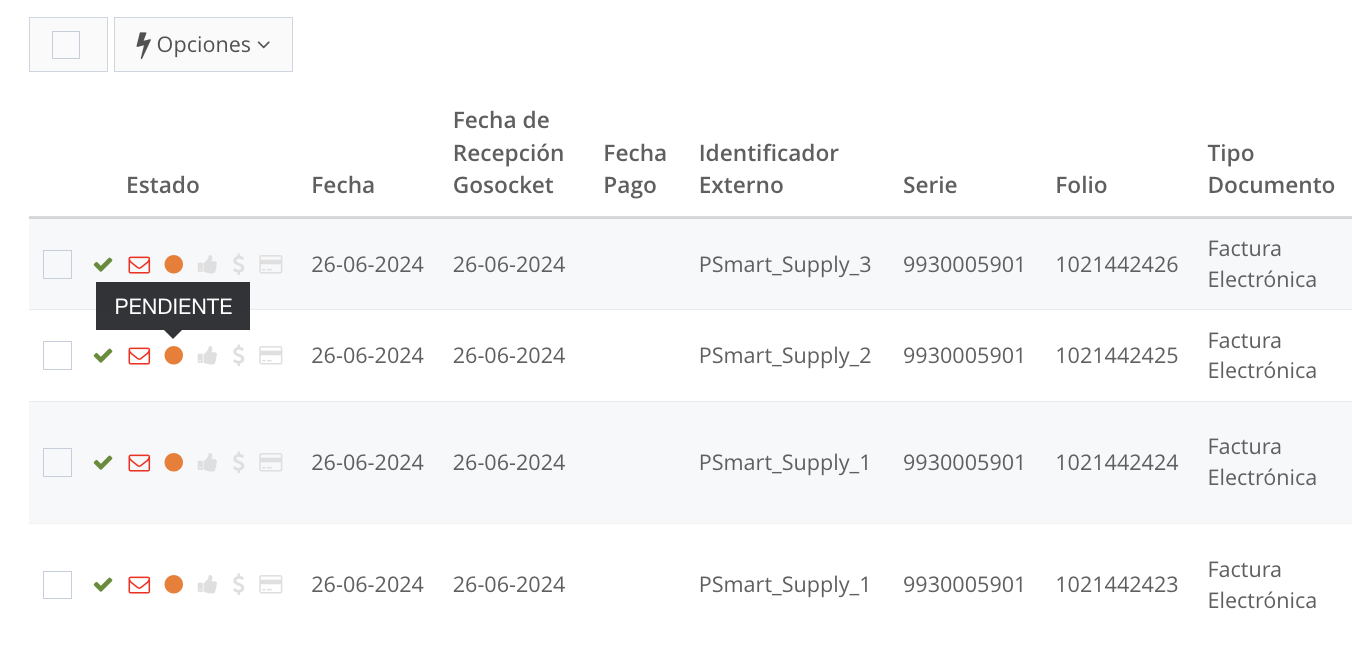
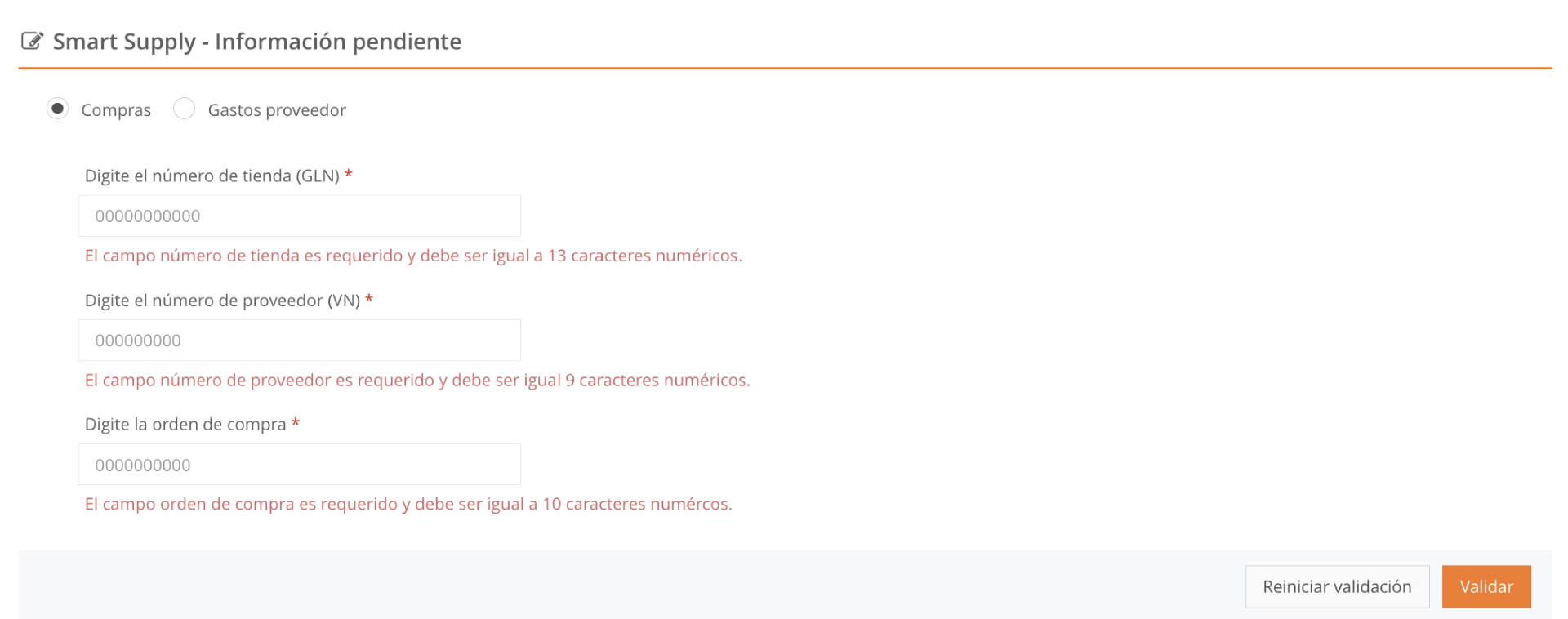
5. Complete the requested information. Click the document with the orange status to open it. The system will display the missing fields requested by your customer, which may include:
- Store number
- Supplier number
- Purchase order (PO) number
- Other Smart Supply–required fields
Fill in the necessary information in the corresponding fields. When finished, click Validate to submit the updated information.
6. Understanding document status colors. Once validated, the status color will change depending on the document’s progress:
Color | Status | Meaning |
|---|---|---|
Yellow | Sent | The document has been successfully sent to the recipient. |
Red | Rejected | The recipient has rejected the document. |
Green | Approved | The document has been validated successfully. |
Important:
- Smart Supply–required information can only be modified while the document is in PENDING (Orange) status.
This means:
- If the document is already in SENT (Yellow) (Enviado), APPROVED (Green) (Aprobado), or REJECTED (Red) (Rechazado) status, the information can no longer be changed.
- This restriction applies to critical data such as PO number, store number, supplier number, and other validation fields.
¿What to do if the document was already sent or rejected?
If the document has already progressed and the data is incorrect, you have two options:
Option 1: Cancel the document using a Credit Note
- Issue a Credit Note referencing the incorrect invoice.
- Reissue the document with a new folio number, ensuring the information is correct this time.
- Validate the new document in the portal.
Option 2: Check with your customer
- Some customers may have alternative processes for validation.
- It is recommended to confirm with them if another option is available to avoid reissuance.
Was this article helpful?
That’s Great!
Thank you for your feedback
Sorry! We couldn't be helpful
Thank you for your feedback
Feedback sent
We appreciate your effort and will try to fix the article


